Sharper pixels: pick an image upscaler model
Choose an AI upscaler for your image type with artifact control and batch-processing needs.
Customize this prompt
Fill in the fields below — the prompt text updates automatically. [BRACKETED] words are placeholders you replace.
The prompt
Act as an imaging specialist. I need to upscale [IMAGE_TYPE], e.g. [EXAMPLE], from [SOURCE_RES] to [TARGET_RES]. Priorities: detail preservation [DETAIL_NEED], artifact control for [ARTIFACT_RISK] (e.g. faces, text), batch volume [VOLUME]/month, budget [BUDGET]. Compare [MODEL_LIST] on: sharpness on [IMAGE_TYPE], face/text handling, noise behavior, batch API, and cost. Recommend the best with settings: scale factor, denoise [DENOISE_LEVEL], and face-restore [FACE_SETTING]. Include a test protocol: '[TEST_PROTOCOL]' on [NUMBER] sample images.
How to use it
- Define your image type and target resolution
- Note artifact risks like faces or text
- Compare upscalers on your sample images
- Tune denoise and face-restore settings
- Set up batch processing with the winner
Customization tips
Change [IMAGE_TYPE] and resolution targets for print, archival, or e-commerce imagery.
Example use case
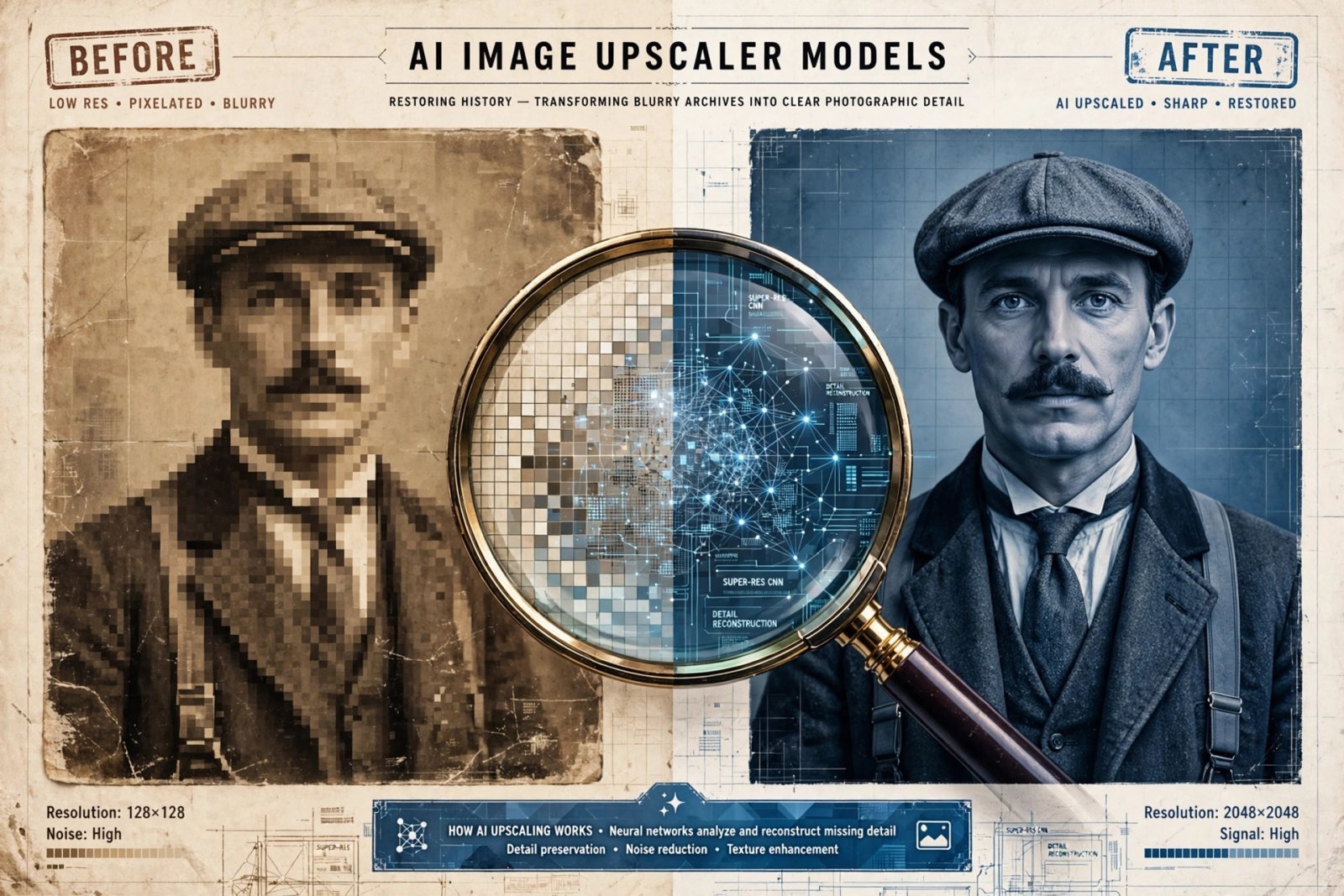
Use when selecting an upscaler for photo restoration or print preparation.
Frequently asked questions
Will upscaling fix a blurry photo?
It enhances detail convincingly but cannot recover information that was never captured.
What about text in images?
Test text-heavy samples specifically — some upscalers garble small type.
Share
Tags: image upscaling photo restoration model selection image quality batch processing
Reviewed by the PromptVault editorial team on October 12, 2026.
Source notes: Daily pipeline 20261012 batch 108